The resource kit
Download and installation guide
Find your resource, check your device, and follow the guidance for your order.
- 01 Find your resource
- 02 Download with its provider
- 03 Continue your setup
Your download route
Resource Download Next stepDownload your four Basic parts
- Sign in to My Services with the account for your Basic order. Open that order and save your setup if the order asks you to do so.
- In Resources & Updates, prepare your Basic main collection. Check for all four entries, from Part 1 of 4 through Part 4 of 4.
- Open each entry in order and use the download controls in MEGA. Check each transfer before continuing and keep the original file names. Follow the instructions supplied with the files for any unpacking.
- Return to the same order to continue setup. If an entry is missing or a transfer stops, keep the provider error and the part number so they can be checked.
Character Style Mega Pack downloads
- Sign in to My Services with the account for your verified payment. Open the Character Style Mega Pack order for the 6, 12 or 24 calendar months you purchased.
- In Resources & Updates, prepare the eligible Character Style collection for that order. Use the protected entry shown there to open the provider download page.
- Download the files you need and check each completed transfer. Keep the original file names and follow the package's own guide and unpacking instructions.
- Check Device compatibility and the selected files' operating-system, game and DLC requirements before installation. If the package does not identify the requirements for your setup, ask through the same order before using it.
- If a resource is missing or a transfer stops, contact support from that order with the entry name, your operating system, the failed step and the provider error.
The purchased 6, 12 or 24 calendar months start at verified payment. Initial access uses the eligible release current at payment; eligible updates may be claimed during coverage. Catch-up after expiry is unavailable. Each issued download grant lasts one calendar month from issuance; check the exact deadline in your order and complete the transfer within it.
Furniture Add-on downloads
- Sign in to My Services with the account for your verified payment. Open the Furniture Add-on order for the 6, 12 or 24 calendar months you purchased.
- In Resources & Updates, prepare the eligible Furniture collection for that order. Use the protected entry shown there to open the provider download page.
- Download the files you need and check each completed transfer. Keep the original file names and follow the package's own guide and unpacking instructions.
- Check Device compatibility and the selected files' operating-system, game and DLC requirements before installation. If the package does not identify the requirements for your setup, ask through the same order before using it.
- If a resource is missing or a transfer stops, contact support from that order with the entry name, your operating system, the failed step and the provider error.
The purchased 6, 12 or 24 calendar months start at verified payment. Initial access uses the eligible release current at payment; eligible updates may be claimed during coverage. Catch-up after expiry is unavailable. Each issued download grant lasts one calendar month from issuance; check the exact deadline in your order and complete the transfer within it.
Device compatibility
For the current PC game, EA lists Windows 10 (64-bit) as the minimum operating system. Selected resources and tools may have additional requirements.
macOS 13+ for general support; AI on Mac requires Apple M-series.
Filters are Windows-only.
Phones and tablets are not installation devices.
Plan your storage
Download size, installed size and temporary unpacking space are different. Confirm all three for the selected version; collection totals are not a free-space requirement.
Collection size and the space needed for your installation are different. Check the actual files selected for your order before downloading.
Collection size
The total resources described by your plan. It is not a universal free-space requirement.
Selected download
The files you are preparing to download now. Use their actual size in the download estimate.
Installed files
The space needed after unpacking and installing your selected resources.
Temporary unpacking space
Downloaded archives and extracted files may need to coexist. Check the package instructions before deleting archives.
An SSD is recommended for large collections. A mechanical hard drive can make loading and unpacking much slower; timing depends on your selected content and computer.
AI setup preparation
The Sims 4 must already be installed before AI setup.
SFW AI R5.3.15 Lite for Windows x64 or Apple Silicon Mac, with an English guide.
Standalone AI Setup includes one scheduled remote installation.
Premium includes AI Setup and its eligible installation help at no extra charge.
StarDesk remote support
Get ready for your StarDesk session
Download StarDesk on the computer we will help with. Open the app and sign in with your own Google, email or Apple account. The studio uses its own account.
If you will be at your computer
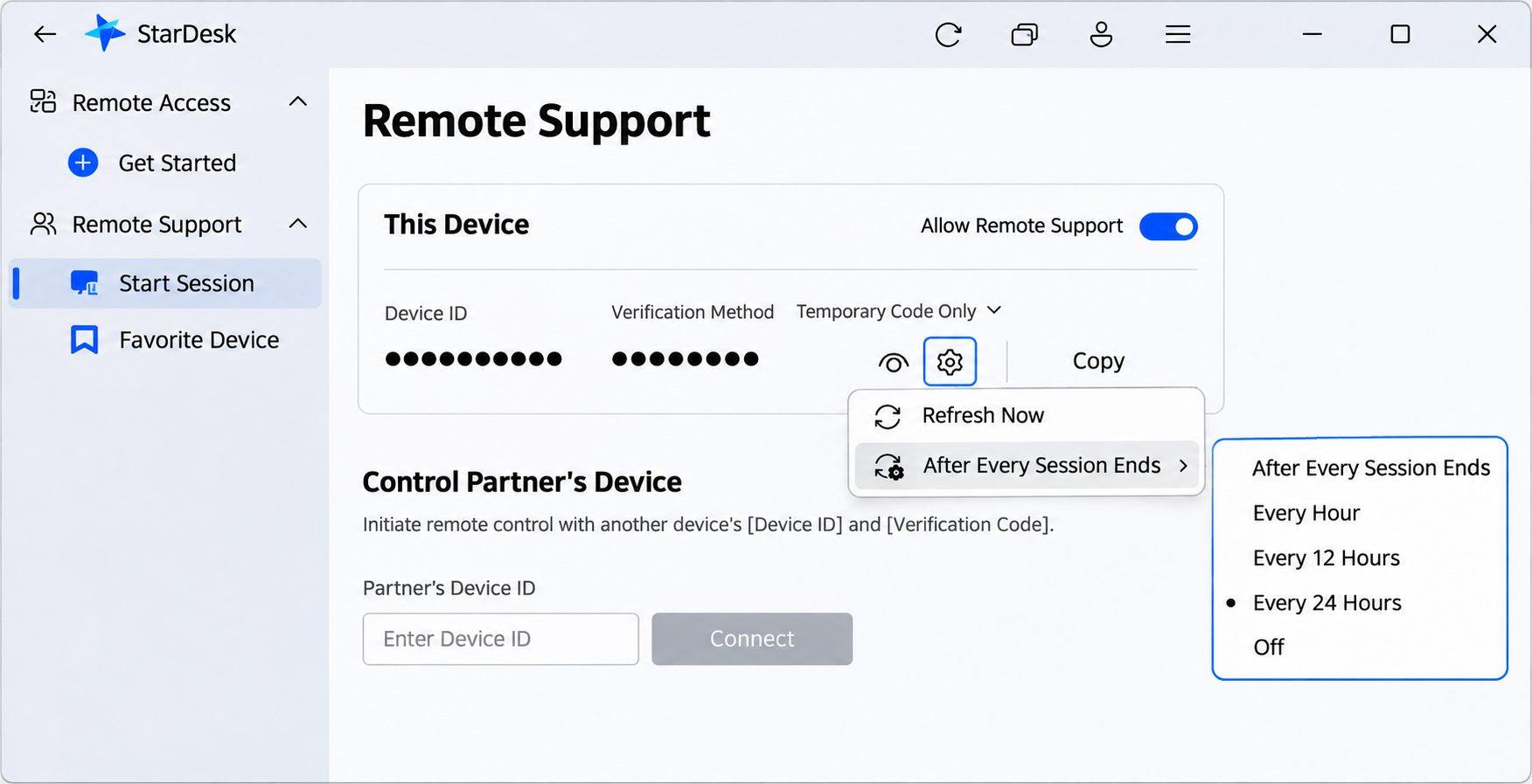
- In StarDesk, open Remote Support → Start Session and turn on Allow Remote Support.
- Provide your Device ID in your order. Keep StarDesk open and your computer awake and online.
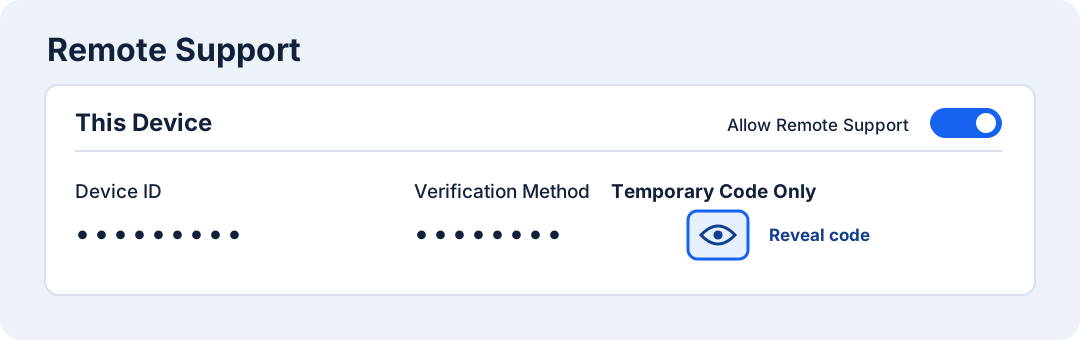
- At your appointment, accept the incoming request when it appears, typically at the lower-right on Windows. If your app requires a verification code, reveal it with the eye icon and provide the current code during the appointment.
If you will be away
- Turn on Allow Remote Support and select Temporary Code Only.
- Select the eye icon beside the code. Enter your Device ID and current temporary verification code in your order’s secure remote-access form.
- Open the gear icon beside the code. Choose a refresh interval that fits your agreed access window. If the code changes before we connect, update it in your order.
- Leave StarDesk open and the computer powered, awake and online. After the session, choose Refresh Now or turn off Allow Remote Support.
Using a Mac? Follow the StarDesk prompts for Screen Recording and Accessibility in System Settings. Stay available for any first-time permission, unlock or local administrator prompt. Enter any computer password yourself.
Keep your StarDesk sign-in credentials and account verification codes private. Share only the Device ID and the temporary code shown under Remote Support when needed for the agreed session.
Official sign-in instructions · Official Remote Support instructions